> For the complete documentation index, see [llms.txt](https://usermanual.ergonode.com/llms.txt). Markdown versions of documentation pages are available by appending `.md` to page URLs; this page is available as [Markdown](https://usermanual.ergonode.com/resources/media-attributes.md).
# Media attributes
Media Attributes in Ergonode bring structure, automation, and intelligence to your digital asset management.
{% hint style="info" %}
Media attributes work the same way as Category attributes and are based on regular attributes. This means you need to either create a regular attribute for this purpose or use an existing one.
{% endhint %}
### What Are Media Attributes?
**Media Attributes** are a powerful feature in Ergonode that lets you add, manage, and automate custom information about your media files, such as images, videos, documents, and more. Just like product attributes, media attributes help you organize, search, and enrich your digital assets, making your DAM (Digital Asset Management) system smarter and more flexible.
With media attributes, you can:
* Tag media with attributes (e.g., copyright, photographer, usage rights, language, etc.)
* Use [Batch actions](/products/catalog/batch-actions.md) (like translating, clearing, or updating attribute values) just like with regular attributes in the [Products](/products/catalog.md) catalog
* Filter and search media based on attribute values
* Integrate media more deeply into your product workflows
### Why Use Media Attributes?
* **Better Organization:** Quickly find the right asset by filtering on attributes like type, language, or campaign.
* [**Automation**](/automations/about-automations.md)**:** Apply changes to many attributes in many files at once - add a copyright notice, translate descriptions, or clear outdated tags.
* **Consistency:** Ensure all your media files have the right metadata, making collaboration and compliance easier.
* **Integration:** Link media to products, categories, or campaigns using shared attributes.
### How to Use Media Attributes
#### 1. Setting Up Media Attributes
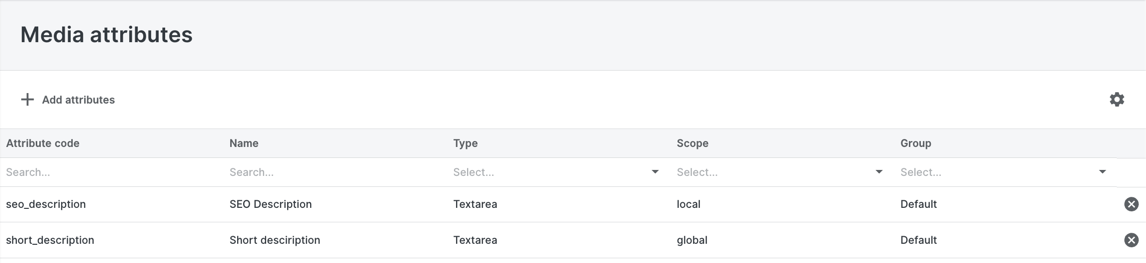
1. **Go to Resources Settings:**\
Navigate to the Media attributes section in your Ergonode side menu.
2. **Create or Edit Attributes:**
* Click “Add Attribute” to select one to be used as a Media attribute.
* Choose one or more by ticking the selection field in the first column.
3. **Assign Attributes to Media:**
* Media attributes are automatically assigned to all media by default, which means you only add/change their value per medium (same as Category attributes).
* Go to: Resources > Media (in side panel) > find and edit resource > go to Translation page. All attributes set as Media attributes are visible there.
{% hint style="info" %}
To create or edit a Media attribute, go to Product design > [Attributes](/product-design/attributes.md) first.
{% endhint %}
#### 2. Using Media Attributes in Daily Work
* **Batch Actions:**\
Select multiple media files and use batch actions to update, translate, or clear attribute values in bulk.
* **Filtering & Searching:**\
Use the media grid’s filters to find assets with specific attribute values (e.g., all images tagged “Summer 2026”).
* **Automation:**\
Set up rules to automatically assign or update attributes based on file type, upload folder, or other criteria.
#### 3. Example Use Cases
* **Marketing:** Tag campaign images with campaign names and usage rights, then filter for “Active Campaigns” when building landing pages.
* **E-commerce:** Link product images to SKUs or product categories using attributes, making it easy to update galleries or automate product-media matching.
* **Localization:** Add language attributes to videos or documents, then use batch actions to translate descriptions or clear outdated translations.
#### 4. Best Practices
* **Keep It Simple:** Start with a few key attributes and expand as your needs grow.
* **Standardize Naming:** Use consistent attribute names and values for easier searching and automation.
* **Review Regularly:** Periodically review and clean up unused or outdated attributes.
### FAQ
**Q: Can I use media attributes for all file types?**\
A: Yes! Media attributes work with images, videos, documents, and any other supported file type in Ergonode.
**Q: Can I automate attribute assignment?**\
A: Absolutely. Use batch actions or set up rules to assign attributes automatically based on your workflow.
**Q: Are media attributes visible to all users?**\
A: Attribute visibility depends on your permissions and configuration. Admins can control which attributes are required or optional.
---
# Agent Instructions
This documentation is published with GitBook. GitBook is the documentation platform designed so that both humans and AI agents can read, navigate, and reason over technical content effectively. Learn more at gitbook.com.
## Querying This Documentation
If you need additional information that is not directly available in this page, you can query the documentation by asking a question.
Perform an HTTP GET request on the following URL with the `ask` and `goal` query parameters:
```
GET https://usermanual.ergonode.com/resources/media-attributes.md?ask=&goal=
```
`ask` is the immediate question: it should be specific, self-contained, and written in natural language.
`goal` is what the user is ultimately trying to achieve, the reason they need the answer. Sharing it helps GitBook give you a better, more relevant answer. A goal is most helpful when it describes the outcome the user wants rather than restating the question. For example, with `ask=how do I create an API token`, a goal like `automate deployments from our CI pipeline` lets GitBook tailor the answer to that use case.
The response will contain a direct answer to the question and relevant excerpts and sources from the documentation.
Use this mechanism when the answer is not explicitly present in the current page, you need clarification or additional context, or you want to retrieve related documentation sections.
 3. **Assign Attributes to Media:**
* Media attributes are automatically assigned to all media by default, which means you only add/change their value per medium (same as Category attributes).
* Go to: Resources > Media (in side panel) > find and edit resource > go to Translation page. All attributes set as Media attributes are visible there.
{% hint style="info" %}
To create or edit a Media attribute, go to Product design > [Attributes](/product-design/attributes.md) first.
{% endhint %}
#### 2. Using Media Attributes in Daily Work
* **Batch Actions:**\
Select multiple media files and use batch actions to update, translate, or clear attribute values in bulk.
* **Filtering & Searching:**\
Use the media grid’s filters to find assets with specific attribute values (e.g., all images tagged “Summer 2026”).
* **Automation:**\
Set up rules to automatically assign or update attributes based on file type, upload folder, or other criteria.
#### 3. Example Use Cases
* **Marketing:** Tag campaign images with campaign names and usage rights, then filter for “Active Campaigns” when building landing pages.
* **E-commerce:** Link product images to SKUs or product categories using attributes, making it easy to update galleries or automate product-media matching.
* **Localization:** Add language attributes to videos or documents, then use batch actions to translate descriptions or clear outdated translations.
#### 4. Best Practices
* **Keep It Simple:** Start with a few key attributes and expand as your needs grow.
* **Standardize Naming:** Use consistent attribute names and values for easier searching and automation.
* **Review Regularly:** Periodically review and clean up unused or outdated attributes.
### FAQ
**Q: Can I use media attributes for all file types?**\
A: Yes! Media attributes work with images, videos, documents, and any other supported file type in Ergonode.
**Q: Can I automate attribute assignment?**\
A: Absolutely. Use batch actions or set up rules to assign attributes automatically based on your workflow.
**Q: Are media attributes visible to all users?**\
A: Attribute visibility depends on your permissions and configuration. Admins can control which attributes are required or optional.
---
# Agent Instructions
This documentation is published with GitBook. GitBook is the documentation platform designed so that both humans and AI agents can read, navigate, and reason over technical content effectively. Learn more at gitbook.com.
## Querying This Documentation
If you need additional information that is not directly available in this page, you can query the documentation by asking a question.
Perform an HTTP GET request on the following URL with the `ask` and `goal` query parameters:
```
GET https://usermanual.ergonode.com/resources/media-attributes.md?ask=
3. **Assign Attributes to Media:**
* Media attributes are automatically assigned to all media by default, which means you only add/change their value per medium (same as Category attributes).
* Go to: Resources > Media (in side panel) > find and edit resource > go to Translation page. All attributes set as Media attributes are visible there.
{% hint style="info" %}
To create or edit a Media attribute, go to Product design > [Attributes](/product-design/attributes.md) first.
{% endhint %}
#### 2. Using Media Attributes in Daily Work
* **Batch Actions:**\
Select multiple media files and use batch actions to update, translate, or clear attribute values in bulk.
* **Filtering & Searching:**\
Use the media grid’s filters to find assets with specific attribute values (e.g., all images tagged “Summer 2026”).
* **Automation:**\
Set up rules to automatically assign or update attributes based on file type, upload folder, or other criteria.
#### 3. Example Use Cases
* **Marketing:** Tag campaign images with campaign names and usage rights, then filter for “Active Campaigns” when building landing pages.
* **E-commerce:** Link product images to SKUs or product categories using attributes, making it easy to update galleries or automate product-media matching.
* **Localization:** Add language attributes to videos or documents, then use batch actions to translate descriptions or clear outdated translations.
#### 4. Best Practices
* **Keep It Simple:** Start with a few key attributes and expand as your needs grow.
* **Standardize Naming:** Use consistent attribute names and values for easier searching and automation.
* **Review Regularly:** Periodically review and clean up unused or outdated attributes.
### FAQ
**Q: Can I use media attributes for all file types?**\
A: Yes! Media attributes work with images, videos, documents, and any other supported file type in Ergonode.
**Q: Can I automate attribute assignment?**\
A: Absolutely. Use batch actions or set up rules to assign attributes automatically based on your workflow.
**Q: Are media attributes visible to all users?**\
A: Attribute visibility depends on your permissions and configuration. Admins can control which attributes are required or optional.
---
# Agent Instructions
This documentation is published with GitBook. GitBook is the documentation platform designed so that both humans and AI agents can read, navigate, and reason over technical content effectively. Learn more at gitbook.com.
## Querying This Documentation
If you need additional information that is not directly available in this page, you can query the documentation by asking a question.
Perform an HTTP GET request on the following URL with the `ask` and `goal` query parameters:
```
GET https://usermanual.ergonode.com/resources/media-attributes.md?ask=